

How to change your web browser language

an older man with a young child and middle aged man circling around two smartphones together
Changing your web browser's language can make it easier for you to navigate the internet in your preferred language. Here’s how to update the language settings in four popular web browsers.

​Changing web browser language on phones and tablets

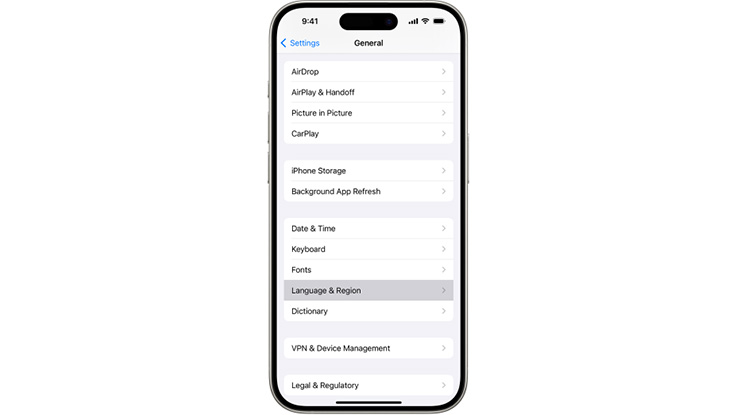
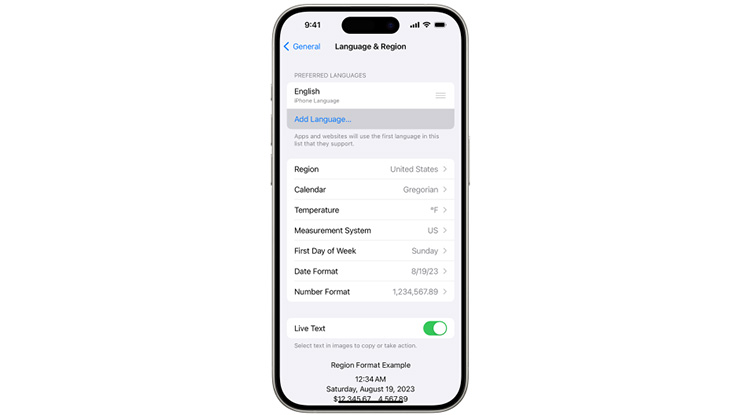
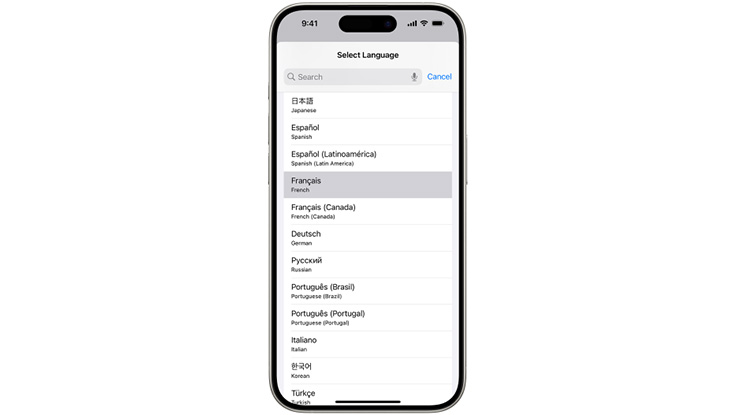
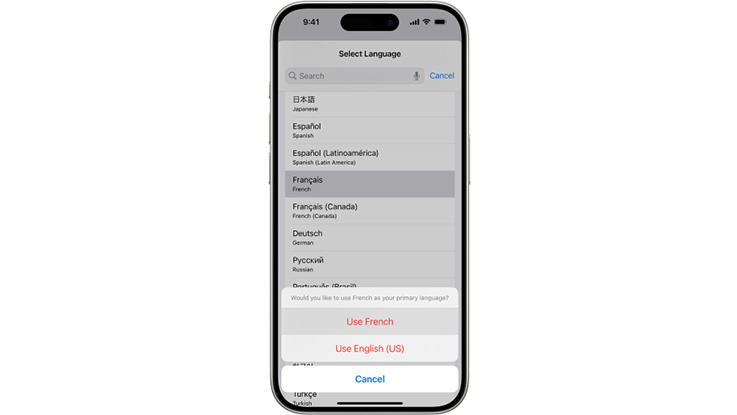
​On iPhone or iPad (Safari, Chrome, Firefox, Edge)

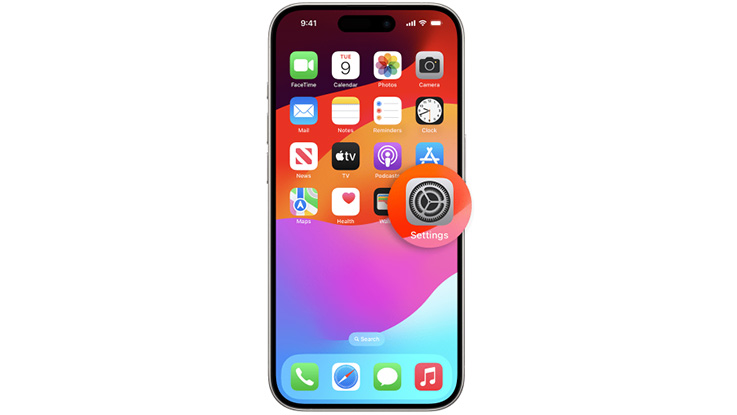
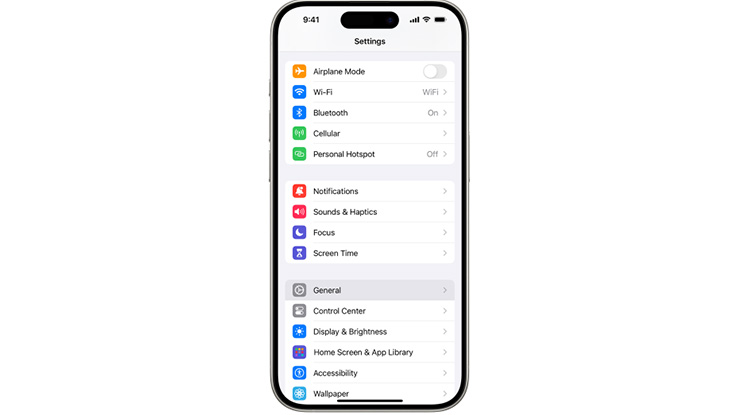
Safari and most other browsers on Apple devices follow the device language.

To change it:

​On Android phones or tablets (Chrome, Firefox, Edge)

Most browsers on Android also follow the device language. 

To change it: 

  1. Open Settings 
  2. Tap System  
  3. Select Languages & input  
  4. Tap Languages  
  5. Select your preferred language by holding down the icon to the right of the language and moving it to the first position 
  6. Tap Add a language if your preferred language isn’t listed 

Chrome and other browsers will now display menus and supported websites in your chosen language. 

Changing web browser language on your computer

​Google Chrome

  1. Open Google Chrome and click the three dots in the top-right corner 

  2. Go to Settings 

  3. Scroll down and click Languages (under “Advanced”) 

  4. Click Add languages and choose your preferred language 

  5. Once added, click the three dots next to the language and select: 

    • Display Google Chrome in this language (if available) 

    • Move to the top to make it the default 

  6. Restart Chrome to apply the changes 

Safari (Mac)

Safari uses your Mac’s system language. To change it: 

  1. Click the Apple menu and go to System Settings (or System Preferences

  2. Select General, then Language & Region 

  3. Click the plus (+) button to add a new language 

  4. Drag your preferred language to the top of the list 

  5. Restart your Mac to apply the change 

Safari will now display menus and supported websites in your chosen language. 

​Microsoft Edge

  1. Open Edge and click the three dots in the top-right corner 

  2. Go to Settings > Languages 

  3. Click Add languages, choose your preferred language, and click Add 

  4. Once added, click the three dots next to the language and select: 

    • Display Microsoft Edge in this language 

    • Offer to translate pages in this language (optional) 

  5. Restart Edge to apply the changes 

​Mozilla Firefox

  1. Open Firefox and click the three lines in the top-right corner 

  2. Go to Settings > General 

  3. Scroll down to Language 

  4. Click Set Alternatives, then Select a language to add 

  5. Choose your preferred language and click OK 

  6. Move your chosen language to the top of the list 

  7. Restart Firefox to apply the changes

​Need Help?

Our Tech Support team is here to assist you. Check out the Tech Support Team article to learn more about what they can help with and how to contact them.

End of article

Was this article helpful?

Related articles