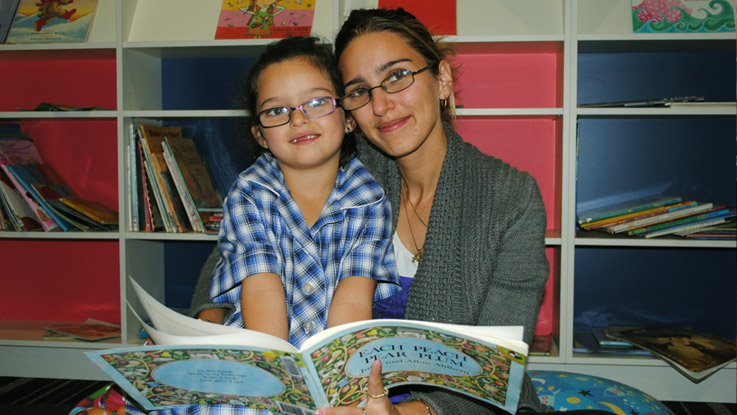
Learning for Life is an innovative, evidence-based program that supports students throughout their education to achieve positive long-term outcomes for young people experiencing disadvantage.
Our work engages Aboriginal and Torres Strait Islander communities in learning through education, life skills and role models, promoting culturally responsive practice.
Our learning support and mentoring programs in 90 Australian communities directly help children in need achieve their goals through education.
Corporate partnerships give young Australians in need the chance to change their futures through educational support. Discover how you can join forces with The Smith Family to create a mutually-beneficial, impactful partnership.
Making small, regular donations to The Smith Family through Workplace Giving is an easy way to help change the lives of young Australians living in poverty.
Between Saturday 27 September 9:00 AM and Monday 29 September 9:00 AM, there may be temporary outages due to planned maintenance. We appreciate your patience.